A screen time app for Windows

ScreenRhythm puts a daily limit, breaks and a weekly schedule on the family Windows PC. The child sees the countdown; the parent approves extra time from a phone browser. Free plan, no Microsoft account required.

  • Daily time limit and a weekly schedule
  • Screen lock when the time is up
  • With Pro: a system-wide site filter and a phone panel
  • No messages, no screenshots, no hidden tracking
Windows 10/11 · 64-bit · Free plan · 14-day Pro trial · The installer is not code-signed yet, so Windows may show a warning.
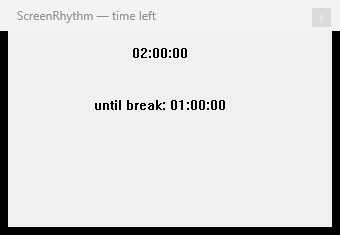
ScreenRhythm child timer showing time left and a break countdown

The child sees the rules and the countdown. There is no hidden mode.

Coming from Google Family Link? Family Link does not run on Windows. See what actually works on a PC →

What the app actually does

A focused tool for the family computer, not a surveillance suite. Every limit is visible to the child.

Daily time limit

Set how long the PC can be used each day. When the time is up, the screen locks until the next day or until a parent adds minutes.

Breaks

A session limit and a break reminder break up long stretches. The child sees how long is left before the break.

Weekly schedule

Different hours for school nights and weekends. The PC unlocks and locks on the schedule you set.

Screen lock

When time runs out, the screen locks. The parent password unlocks it; the child cannot simply close a window to continue.

Visible countdown

The child sees the timer and the tray icon. The rule is visible, so it is easier to accept and discuss.

Pro site filter

Adult content, gambling, ads and trackers, and social networks are blocked system-wide — in every browser, not just one.

Computer time limit software, without the spyware

Most tools in this category sell monitoring: keystrokes, screenshots, message reading, location. ScreenRhythm does the narrower job — it limits time and, with Pro, filters categories of sites.

Total PC time

One daily budget for the whole computer, so a new game or a new site does not reset the clock.

Local account friendly

No Microsoft cloud account is required. The app works with a local Windows user and a parent password.

Privacy by default

No messages, no keystrokes, no hidden screenshots. The phone panel receives total minutes and schedules, not application names or window titles.

One honest limit: ScreenRhythm does not set a separate limit per game or per app. It limits total computer time. If you need “one hour of Minecraft, then homework”, use Microsoft Family Safety app limits for that app and a ScreenRhythm daily limit for the PC.

How it works

1. Install and set a parent password

The installer adds the app and a Windows service that enforces the rules. Set the password before handing the PC to the child.

2. Choose a daily limit and schedule

Pick the daily allowance, session length, breaks and the hours when the PC is available.

3. Let the child see the countdown

The timer and tray icon are visible. With Pro, the child can request more time from the lock screen; the parent approves from a phone browser.

How it compares

The right tool depends on the account your family uses and whether you need per-app limits.

ScreenRhythmMicrosoft Family SafetyPhone-only app
Windows PC time limitYesYesNo
Local Windows accountYesNeeds Microsoft accountsn/a
Per-app or per-game limitNoYesNo
Web filter in every browserProEdge onlyNo
Phone panelPro, in a browserAppApp
Reads messages or screenshotsNoNoVaries
PriceFree; Pro $4.99/moFreeUsually subscription

Microsoft Family Safety is free and built in, and it is the better choice if you already use Microsoft family accounts and need per-app limits. Full comparison →

Simple pricing

The free plan keeps the time limits and schedule. Pro adds the site filter, phone panel, reports and extra-time requests.

Free

Time limits

$0

Forever. No account needed.

  • Daily time limit
  • Break reminders
  • Weekly schedule
  • Screen lock when time is up
  • Parent password
  • Visible timer for the child
Download free
Pro · monthly

Everything, month by month

$4.99/month

14-day trial. Cancel by not renewing.

  • Everything in Free
  • System-wide site filter
  • Phone panel and remote access
  • Extra-time requests from the child
  • Weekly reports
  • Messenger notifications
Buy Pro monthly
Pro · yearly

Best value

$39/year

About $3.25/month. 14-day trial.

  • Everything in Free
  • System-wide site filter
  • Phone panel and remote access
  • Extra-time requests from the child
  • Weekly reports
  • Messenger notifications
Buy Pro yearly

Download for Windows

Windows 10 or 11, 64-bit. The installer is about 6.5 MB and adds the app plus the Windows service that enforces the rules.

ScreenRhythm 1.1.25
Windows 10/11 · 64-bit · 6,844,363 bytes
SHA-256: 9914ee14d22cdda3d2baf00328cea3cfb68890dc9b6c60629c172f281c00f1df
Download installer

The installer is not code-signed, so SmartScreen may show “Windows protected your PC”. What to do. The free plan works without a licence key; Pro is activated with a key.

Questions

Is ScreenRhythm free?

Yes. The free plan includes a daily time limit, breaks, a weekly schedule, a screen lock and a parent password. It does not expire. Pro adds the site filter, phone panel, extra-time requests and weekly reports for $4.99/month or $39/year, with a 14-day trial.

Does it work on Windows 10 and Windows 11?

Yes. ScreenRhythm supports 64-bit Windows 10 and Windows 11. It works with a local Windows account and does not require a Microsoft account.

Is this computer time limit software or a full parental control suite?

It is a focused computer time limiter: a daily limit, breaks, a schedule and a screen lock. Pro adds a system-wide site filter for adult content, gambling, ads and trackers, and social networks. It does not read messages, capture keystrokes or take screenshots.

Does it limit games and apps separately?

No. ScreenRhythm limits total computer time, not individual apps. To limit one game, use Microsoft Family Safety app limits or block the game separately. A total time limit still caps how long any game can run.

Does it block websites in every browser?

The Pro filter works system-wide, so it covers Edge, Chrome, Firefox and other browsers. It filters four categories: adult content, gambling, ads and trackers, and social networks. It does not offer a custom URL list.

Can my child bypass it?

Keep the child on a Standard Windows account and protect the parent password. An administrator can uninstall any app, and a VPN or a second device can get around a filter. No single tool is a guarantee; use it as one layer of a family agreement.
Set it up with a guide

How to limit screen time on Windows 11

Family Safety step by step, plus what to do with a local account.

Parental controls without a Microsoft account

A local standard account, time limits and DNS filtering.

Screen time agreement template

Put the same rules on paper, with a printable agreement for three age groups.